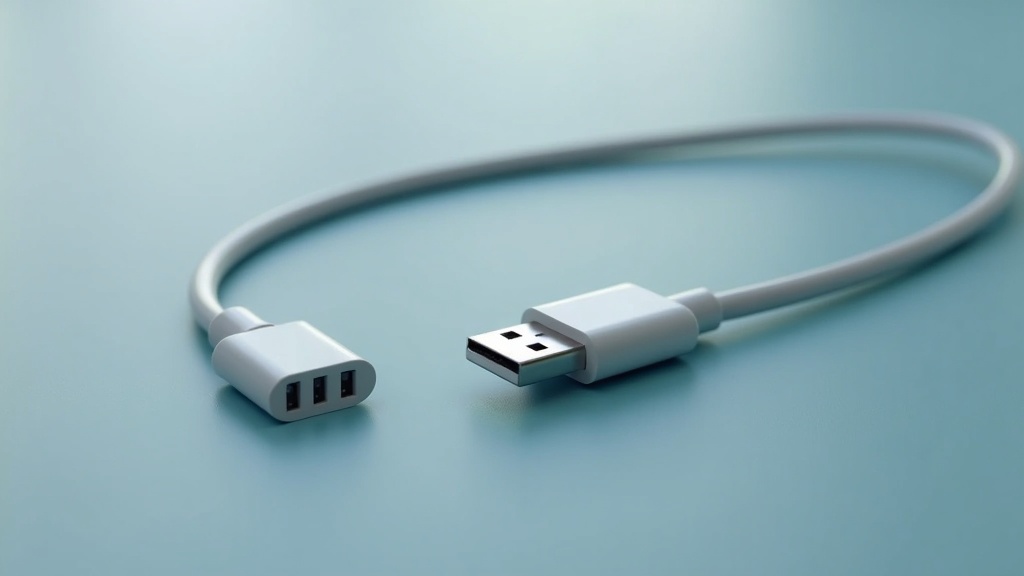
USB to Android Adapter: Connect Peripherals to Your Phone
A USB to Android adapter lets you connect keyboards, flash drives, and other peripherals to your mobile device, expanding what your phone or tablet can do. These small connectors bridge the gap between standard USB accessories and Android’s USB port.
Table of Contents
- What Is a USB to Android Adapter?
- Types of USB to Android Adapters
- What You Can Connect with a USB to Android Adapter
- How to Choose the Right USB to Android Adapter
- Frequently Asked Questions
- Comparison: USB OTG vs. Standard USB Connection
- Practical Tips for Using a USB to Android Adapter
Key Takeaway: A USB to Android adapter is a small cable or dongle that converts your device’s charging port into a standard USB host port, enabling connection to flash drives, keyboards, mice, game controllers, and more. Most modern Android phones support USB On-The-Go (OTG) technology, making these adapters widely compatible.
Quick Stats: USB to Android Adapter
- Android devices can support up to 3 accessory categories through adapters: external displays, storage devices, and audio interfaces (GMB Connect, 2025)[1]
- Modern Android phones commonly use USB-C, while older models use micro-USB – 2 common port types to match (CyberEssentials, 2025)[2]
- For best compatibility, flash drives should be formatted as FAT32 or exFAT – 2 recommended file systems (CyberEssentials, 2025)[2]
What Is a USB to Android Adapter?
A USB to Android adapter is a connector that allows your Android smartphone or tablet to act as a USB host. Instead of just charging or transferring data to a computer, your device can read flash drives, connect to a keyboard, or even output video to an external monitor. The adapter typically has a male plug that fits your phone’s port – USB-C or micro-USB – and a female USB-A or USB-C port for your accessory.
These adapters rely on USB On-The-Go (OTG) technology, which is built into most Android devices released after 2014. OTG enables your phone to supply power to connected peripherals and communicate with them as a host would. As noted by Digital Trends (2024), it’s fairly easy to connect your Android device over OTG using a dongle or connector[3]. Some devices require you to enable OTG in Settings, and some automatically disable it after a period of inactivity – around 10 minutes on many models[3].
The adapter itself is small and portable, often no larger than a thumb drive. You can find them in various configurations: straight cables, right-angle connectors, or multi-port hubs.
Types of USB to Android Adapters
USB to Android adapters come in several form factors, each suited for different use cases. The most common type is the simple OTG cable, which has a male USB-C or micro-USB plug on one end and a female USB-A port on the other. This lets you plug in standard USB accessories directly.
Another popular option is the multi-port hub, which offers multiple USB-A ports, an SD card reader, and sometimes HDMI output. These are useful if you want to connect several devices at once, such as a keyboard, mouse, and flash drive. Some hubs also support pass-through charging, so you can power your phone while using accessories.
USB-C to USB-C adapters are becoming more common as USB-C becomes the dominant port on modern Android devices (GMB Connect, 2025)[1]. These allow you to connect USB-C flash drives or other USB-C peripherals directly. For older devices with micro-USB ports, you’ll need a micro-USB OTG adapter, which works the same way but with the older connector.
There are also specialized adapters for specific tasks, such as audio adapters that let you connect a 3.5mm headphone jack via USB-C, or video adapters that output to HDMI or DisplayPort. When choosing an adapter, make sure it matches your phone’s port type – using the wrong connector can damage the port or the accessory.
What You Can Connect with a USB to Android Adapter
The range of peripherals you can connect to an Android device via a USB to Android adapter is surprisingly broad. The most common use is connecting a USB flash drive to transfer files – photos, documents, music, or videos – without needing a computer. If you connect a storage device, you will now see it in your Android device’s File Manager (Digital Trends, 2024)[3].
Keyboards and mice are also popular. Typing on a physical keyboard is much faster than using an on-screen keyboard, especially for long emails or documents. A mouse can make navigation easier, particularly on tablets or when using desktop-mode interfaces like Samsung DeX. Game controllers, such as Xbox or PlayStation controllers, can be connected for a more console-like gaming experience.
Android devices can support a wide range of USB-connected accessories through adapters, including external displays, storage devices, and audio interfaces (GMB Connect, 2025)[1]. Some users connect external hard drives for backup, while photographers use SD card readers to import images directly to their phone. Audio interfaces allow musicians to record high-quality audio using professional microphones and instruments.
Some Android phones also support reverse charging over OTG, allowing the phone to power another device like a power bank (CyberEssentials, 2025)[2]. This can be a lifesaver in emergencies when you need to charge a friend’s phone or a small accessory.
For developers, the official Android documentation explains that implementing USB accessory support in an app requires a manifest feature declaration plus permission handling for attached accessories (Android Developers, 2026)[4]. This means app developers can build custom functionality around USB peripherals.
How to Choose the Right USB to Android Adapter
Choosing the right USB to Android adapter depends on your device’s port type and what you plan to connect. First, identify whether your phone uses USB-C or micro-USB. Modern Android phones commonly use USB-C, while older models may still use micro-USB, so adapter type must match the phone port (CyberEssentials, 2025)[2].
Next, consider what you’ll connect. If you only need to plug in a single flash drive, a simple OTG cable is sufficient. If you plan to use multiple accessories simultaneously, look for a multi-port hub. For high-power devices like external hard drives, choose an adapter that supports USB Power Delivery, which is used for faster charging on Android devices and may also power larger devices directly from an Android phone or tablet (GMB Connect, 2025)[1].
Build quality matters. Look for adapters with reinforced connectors and braided cables, which last longer than cheap plastic ones. Some adapters include a short cable, which reduces strain on your phone’s port. Also check for compatibility with your specific phone model – some devices have quirks with certain adapters. For best results, read reviews or check manufacturer compatibility lists.
Frequently Asked Questions
Will any USB to Android adapter work with my phone?
Not every adapter works with every phone. You need an adapter that matches your phone’s port type – USB-C or micro-USB. Additionally, your phone must support USB On-The-Go (OTG), which most modern Android devices do. Some budget or older phones may lack OTG support, so check your device specifications before buying. Even compatible phones may require enabling OTG in Settings, and some disable it after about 10 minutes of inactivity (Digital Trends, 2024)[3].
Can I charge my phone while using a USB to Android adapter?
Yes, but only if you use a multi-port adapter or hub that supports pass-through charging. Standard OTG cables do not allow simultaneous charging because the phone’s port is occupied by the adapter. Some USB-C hubs include a separate charging port, letting you power your phone while using accessories. This is particularly useful for extended gaming sessions, video editing, or using your phone as a desktop workstation.
What file formats can I read from a USB drive connected to my Android phone?
Android supports several file systems for external storage. For best compatibility, flash drives used through Android USB OTG adapters are often formatted as FAT32 or exFAT (CyberEssentials, 2025)[2]. FAT32 is widely supported but has a 4GB file size limit, while exFAT handles larger files. NTFS is also supported on some devices but may require third-party apps. Most Android file managers can read common file types like photos, videos, music, and documents from connected drives.
Can I connect a printer or scanner to my Android phone using a USB adapter?
Yes, but support depends on the specific printer or scanner model and whether the manufacturer provides an Android app. Many modern printers support wireless printing, but some can connect directly via USB OTG. For scanners, you may need a dedicated scanning app that supports USB-connected devices. Android devices can support a wide range of USB-connected accessories through adapters, including external displays, storage devices, and audio interfaces (GMB Connect, 2025)[1]. Printer and scanner support is less common but possible with compatible hardware.
Comparison: USB OTG vs. Standard USB Connection
Understanding the difference between USB On-The-Go (OTG) and standard USB connections helps you choose the right adapter for your needs. Standard USB connections are host-to-device – a computer controls peripherals. OTG flips this, letting your phone act as the host. Here’s how they compare:
| Feature | USB OTG (Android Adapter) | Standard USB Connection |
|---|---|---|
| Host device | Android phone or tablet | Computer or laptop |
| Power source | Phone’s battery (may drain faster) | Computer’s USB port (unlimited) |
| Peripheral types | Flash drives, keyboards, mice, game controllers | All USB devices including high-power peripherals |
| File transfer speed | Depends on phone’s USB version (USB 2.0/3.0) | Depends on computer’s USB version |
| Simultaneous charging | Only with pass-through hubs | Not applicable (computer supplies power) |
| Software support | Requires OTG-compatible apps and Android version | Universal driver support |
Practical Tips for Using a USB to Android Adapter
Getting the most out of your USB to Android adapter requires a few practical considerations. First, always format your flash drives as FAT32 or exFAT for maximum compatibility with Android devices (CyberEssentials, 2025)[2]. NTFS may work on some phones but can cause issues. If you’re unsure, test the drive on your phone before relying on it for important data.
Second, invest in a quality adapter with a short cable or right-angle connector. This reduces strain on your phone’s charging port, which can become loose over time. Braided cables and metal connectors last longer than cheap plastic alternatives. If you use your phone heavily with peripherals, consider a multi-port hub with pass-through charging to keep your battery topped up.
Third, keep your Android device updated. Newer versions of Android improve OTG support and add features like native file manager access for external storage. If you’re a developer, check the official Android documentation for guidance on implementing USB accessory support in your apps. As Android Developers (2026) note, because not all Android-powered devices are guaranteed to support the USB accessory APIs, include a
Finally, explore creative uses for your adapter. Connect a digital camera to transfer photos, use a MIDI keyboard for music production, or attach a barcode scanner for inventory management. The possibilities are vast once you understand what your phone can do with the right adapter.
For more about Usb to android adapter, see explore usb to android adapter in depth.
Final Thoughts on USB to Android Adapter
A USB to Android adapter is a small but powerful tool that transforms your phone into a versatile computing device. Whether you need to transfer files, connect a keyboard for productivity, or enjoy console-quality gaming with a controller, the right adapter unlocks capabilities you might not realize your phone has. By choosing the correct connector for your device and understanding OTG compatibility, you can make the most of this affordable accessory. Start by identifying your phone’s port type and exploring the peripherals you already own – you might be surprised at what you can connect.
Useful Resources
- USB-C is the dominant port on modern Android devices. GMB Connect.
https://connect.gmb.org.uk/usb-converter-for-android/ - 10 cool ways to use USB OTG on Android. CyberEssentials.
https://cyberessentials.org/10-cool-ways-to-use-usb-otg-on-android/ - What is USB OTG? Here’s how to use USB drives and more on Android. Digital Trends.
https://www.digitaltrends.com/phones/what-is-usb-otg/ - USB accessory overview | Connectivity | Android Developers. Google.
https://developer.android.com/develop/connectivity/usb/accessory